September 24, 2024 in Tech Tips
Time-Cost Effective ML Model Deployment Using AWS Lambda
SHARE: PRINT ARTICLE: https://doi.org/10.1287/LYTX.2024.04.04

This article provides a walkthrough of two different approaches for deploying machine learning (ML) models on Amazon Web Services (AWS) Lambda. AWS Lambda is always first choice because it is affordable and automatically scalable and users pay only for the requests they make.
The first approach is the classic way of reading ML models from an S3 bucket. The second approach demonstrates zipping the ML model along with Lambda function code and uploading it directly to Lambda.
Approach 1
Figure 1 show the architecture for deploying ML models (being placed in S3 buckets) on Lambda.

Step 1. Create Zip Layer
A layer is a zip archive that contains libraries, a custom runtime or other dependencies. This approach is demonstrated using sklearn and pandas library generally used in ML models. Start by creating a Lambda layer (of sklearn and pandas library) using Docker. Create a file, name it “createLayer.sh” and copy in the following code.
Now, in the same directory, create another file (“requirements.txt”) to store the name and version of libraries for which you want to create a layer. For this case, you will create a layer for pandas and sklearn libraries for the following versions.
Next, go to the terminal where you have placed the above two files and run the following command to generate a zip folder for Lambda layer.
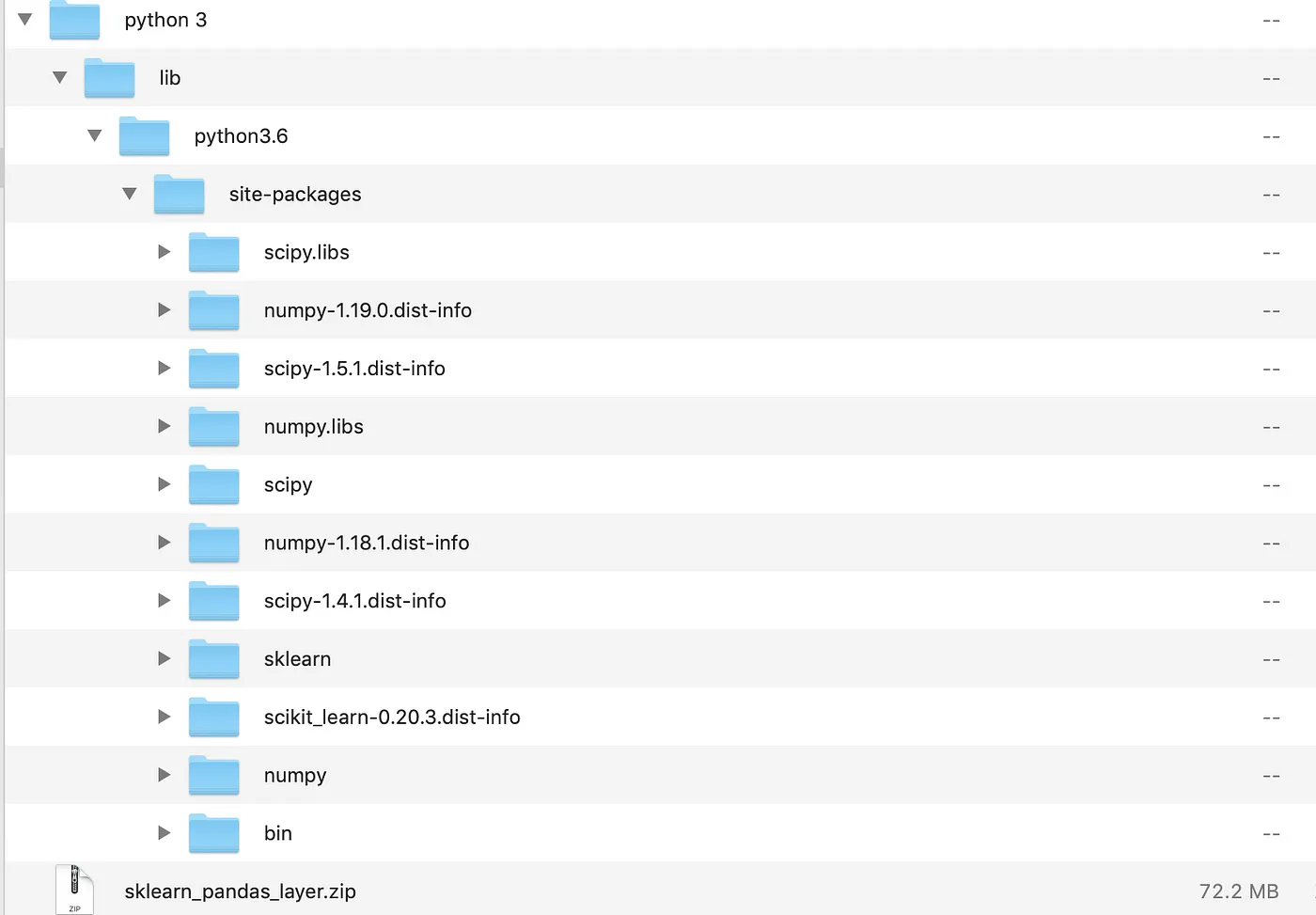
The generated layer is in zip format and good to upload to S3. Contents of this zip file will contain the folders for respective Python libraries as shown in Figure 2.
Step 2. Place ML Model and Lambda Layer in S3
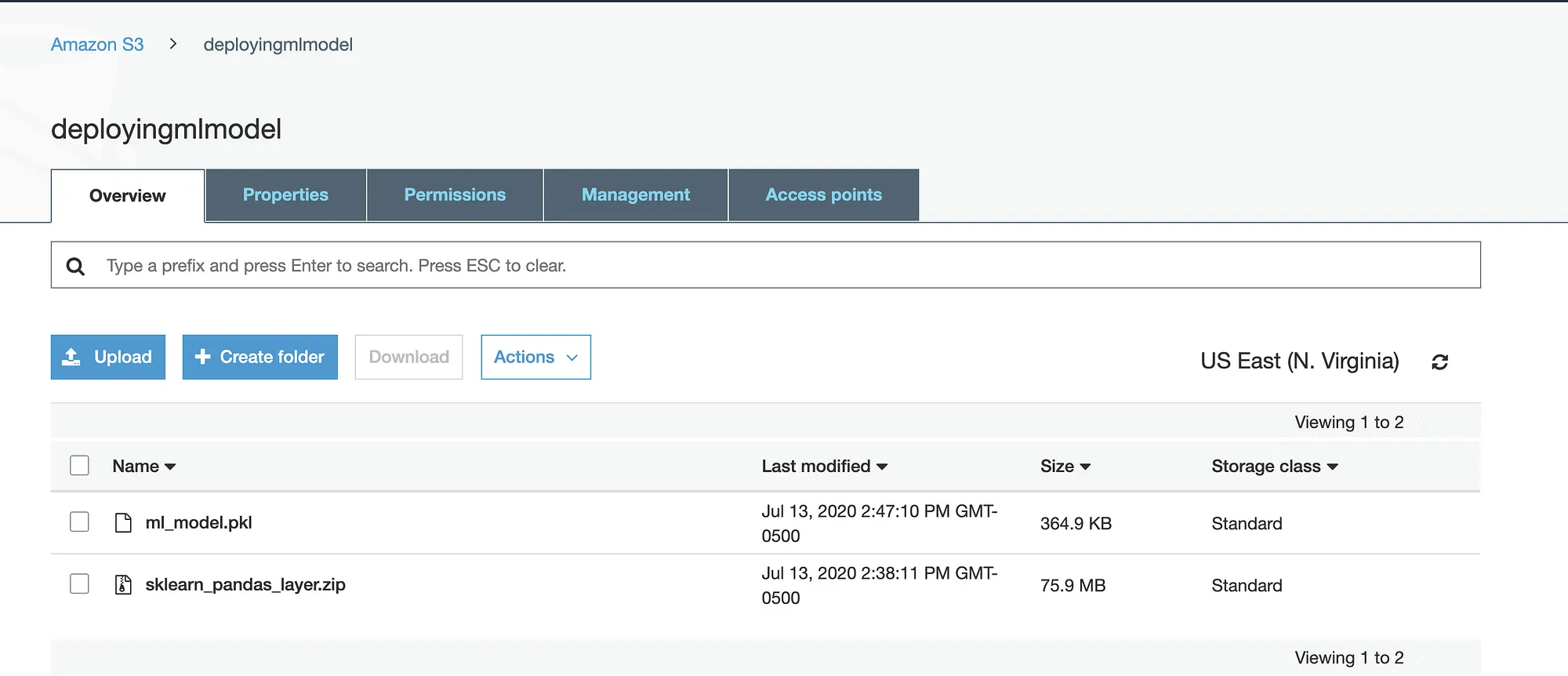
Copy the pkl (i.e., pickle) file for your ML model and the generated layer in Step 1 to a new function in the S3 bucket. After you’ve copied the files, the S3 bucket in AWS should show the function and its contents as presented in Figure 3.
Step 3. Configure Lambda Function and Lambda Layer
Here, we are ready with our model and Lambda layer.
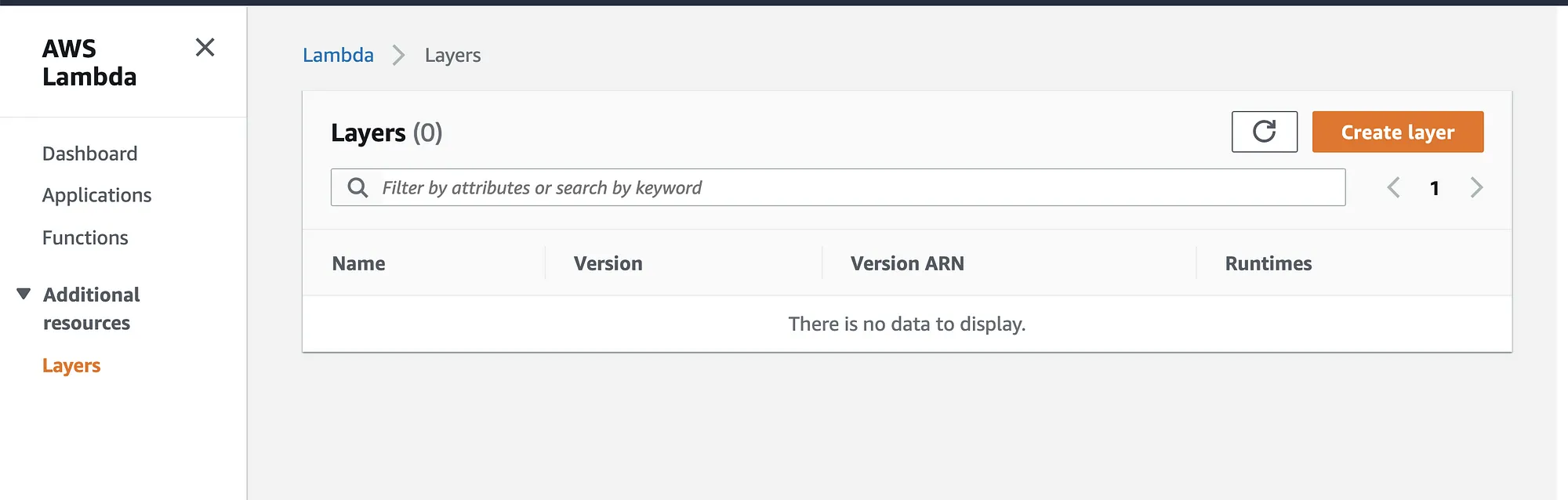
Let’s start configuring Lambda by creating a new Lambda function. Add the Lambda layer from Step 1 to the function from the S3 bucket. To add layers to the Lambda function, click on Layers → Create Layer. See Figure 4 for the placement of the button on the AWS screen.
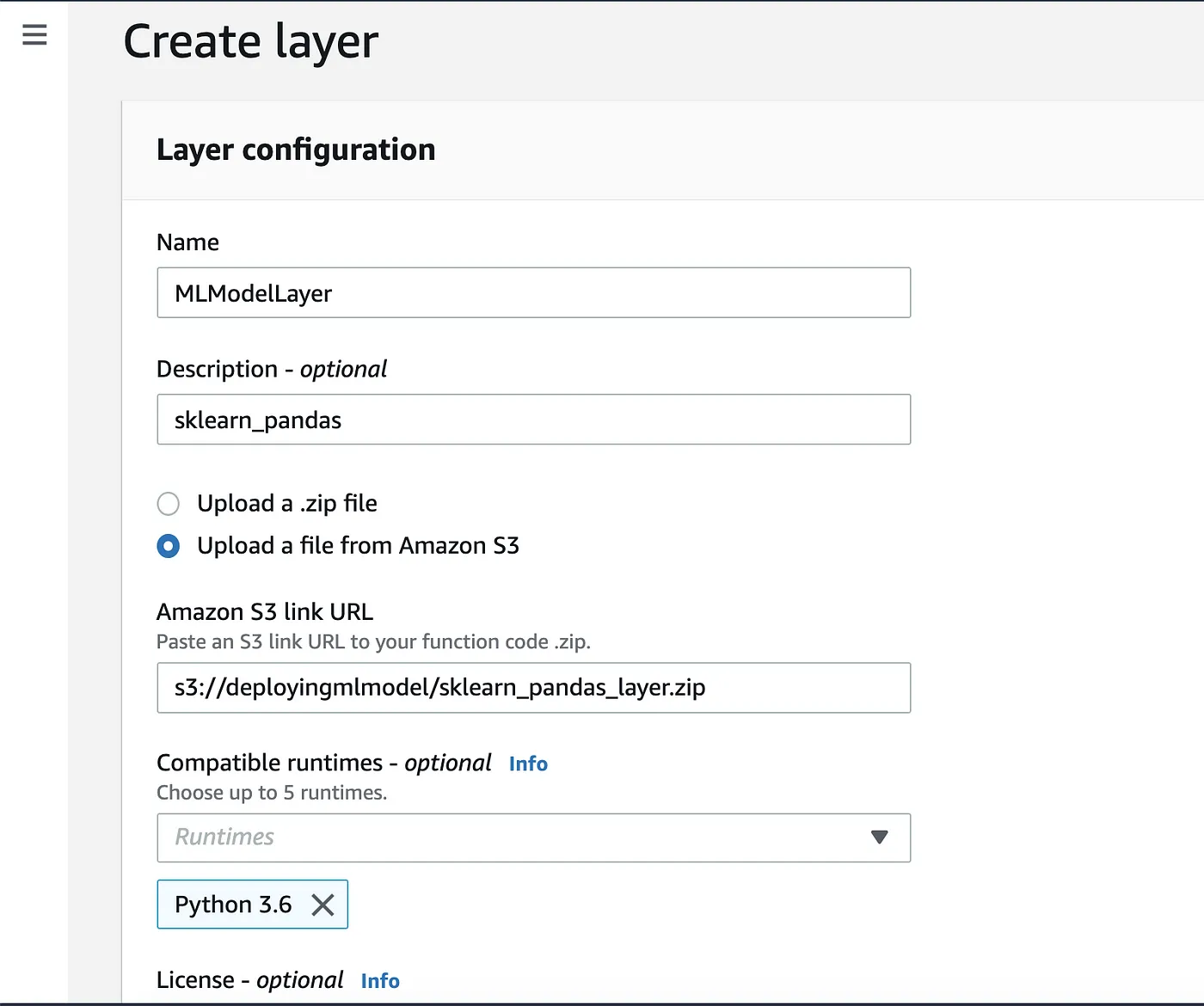
Define the name, description, S3 URL and other properties of the new layer (as shown in Figure 5) and click “Save.”
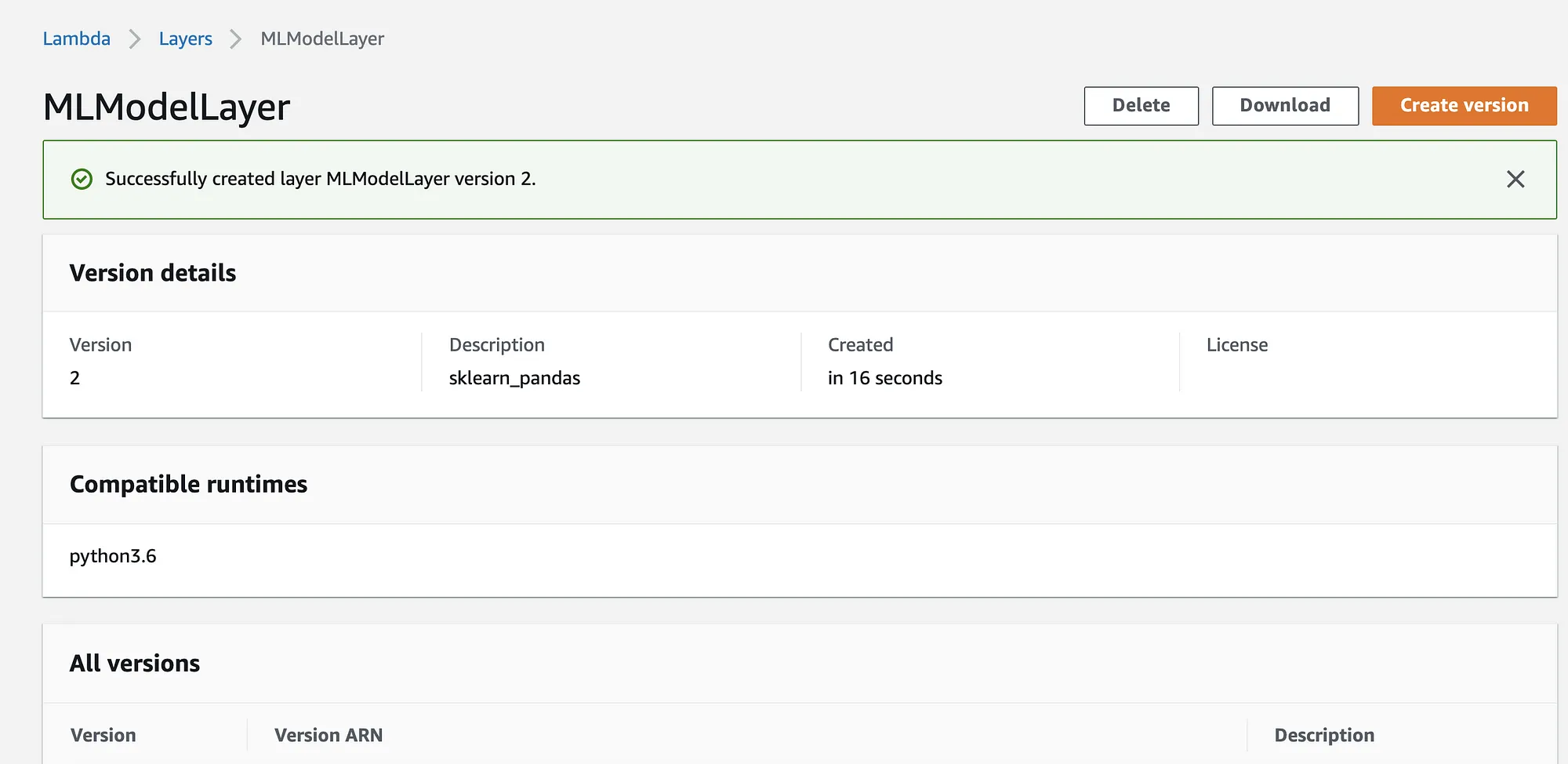
Once the new Lambda layer is created, a success message will appear on the screen stating the name of the layer you created (see Figure 6).
Some key points about Lambda layers:
- Lambda layers need to be zip files.
- You can have a maximum of five Lambda layers for a given Lambda function.
- The Lambda layers cannot be bigger than 250 MB (in total, unzipped).
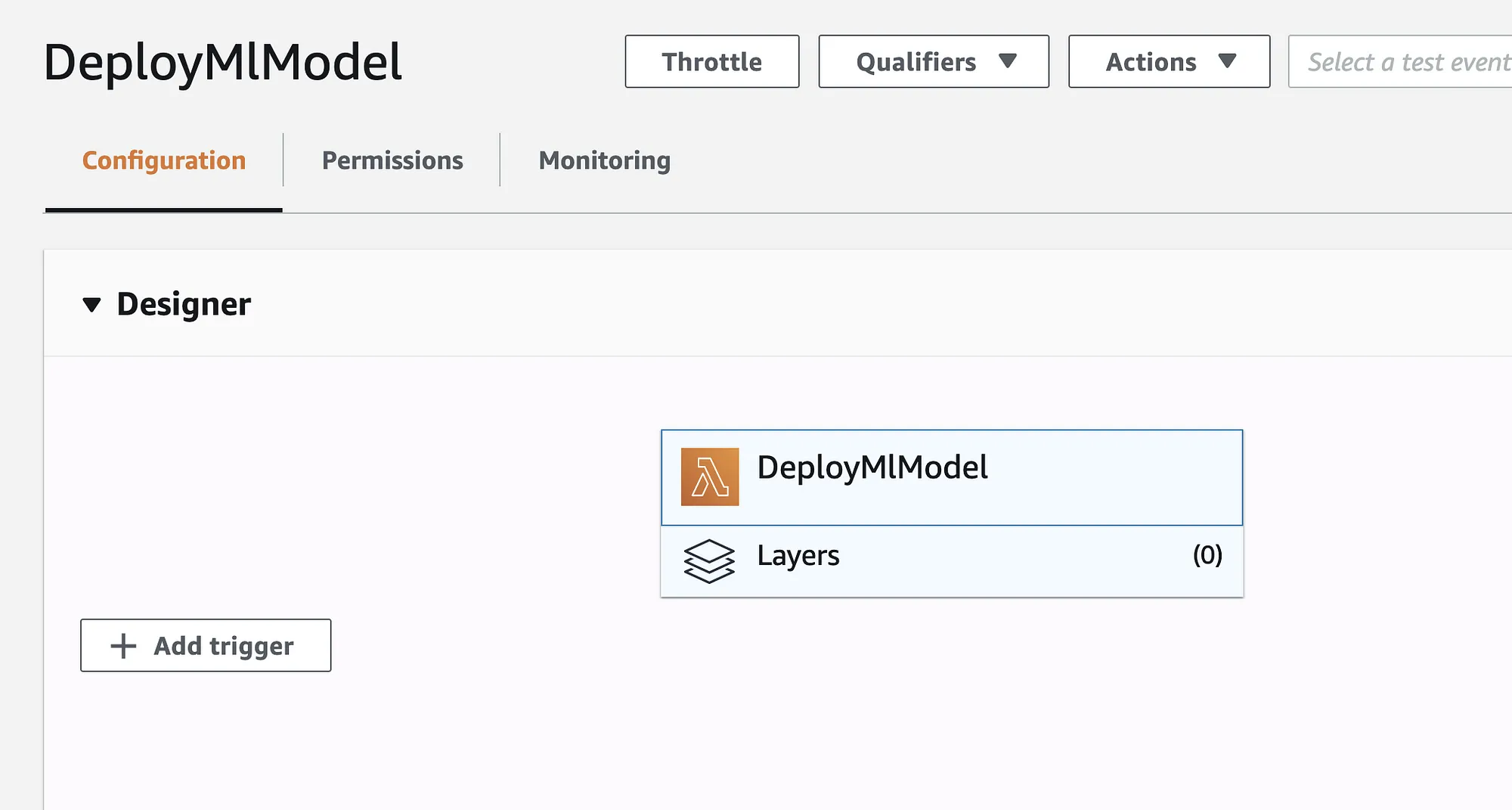
Now, to add this layer, go to the Lambda function that you created to deploy your ML model and click on “Layers” to add a Lambda layer (see Figure 7 for reference).
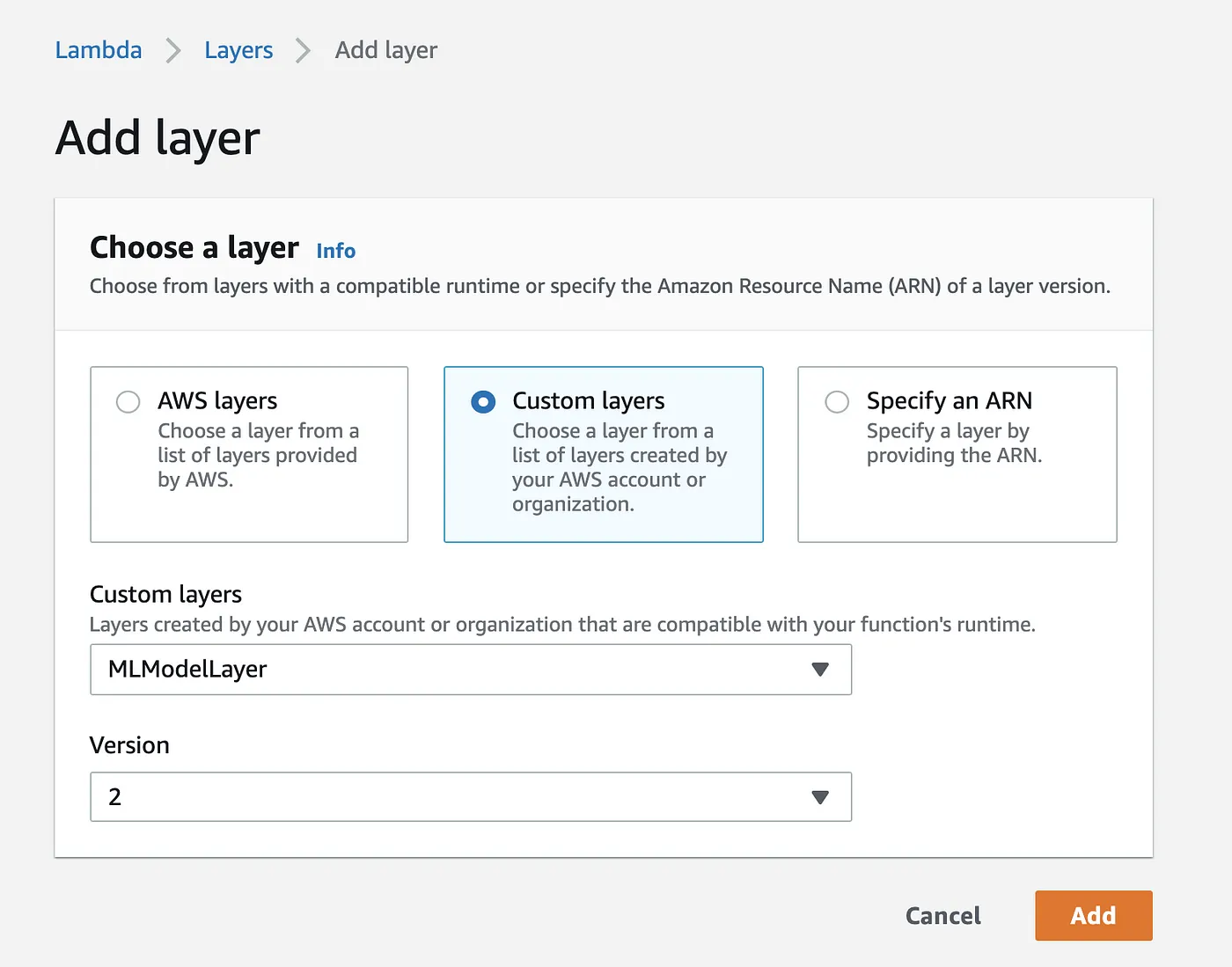
Choose the “custom layers” option. In the dropdown menu, select the name of the newly created Lambda layer in previous step and its specific version in the next dropdown. Click on “Add” to add it to the Lambda function (see Figure 8).
Add the following code to the Lambda handler function:
import pickle
import sklearn
import boto3
import pathlib
import jsons3 = boto3.resource('s3')
filename = 'ml_model.pkl'
file = pathlib.Path('/tmp/'+filename)
if file.exists ():
print ("File exist")
else :
s3.Bucket('deployingmlmodel').download_file(filename, '/tmp/ml_model.pkl')
def lambda_handler(event, context): model = pickle.load(open('/tmp/'+filename, 'rb'))
y print("provide input here")
#pred = model.predict(""provide input here"")
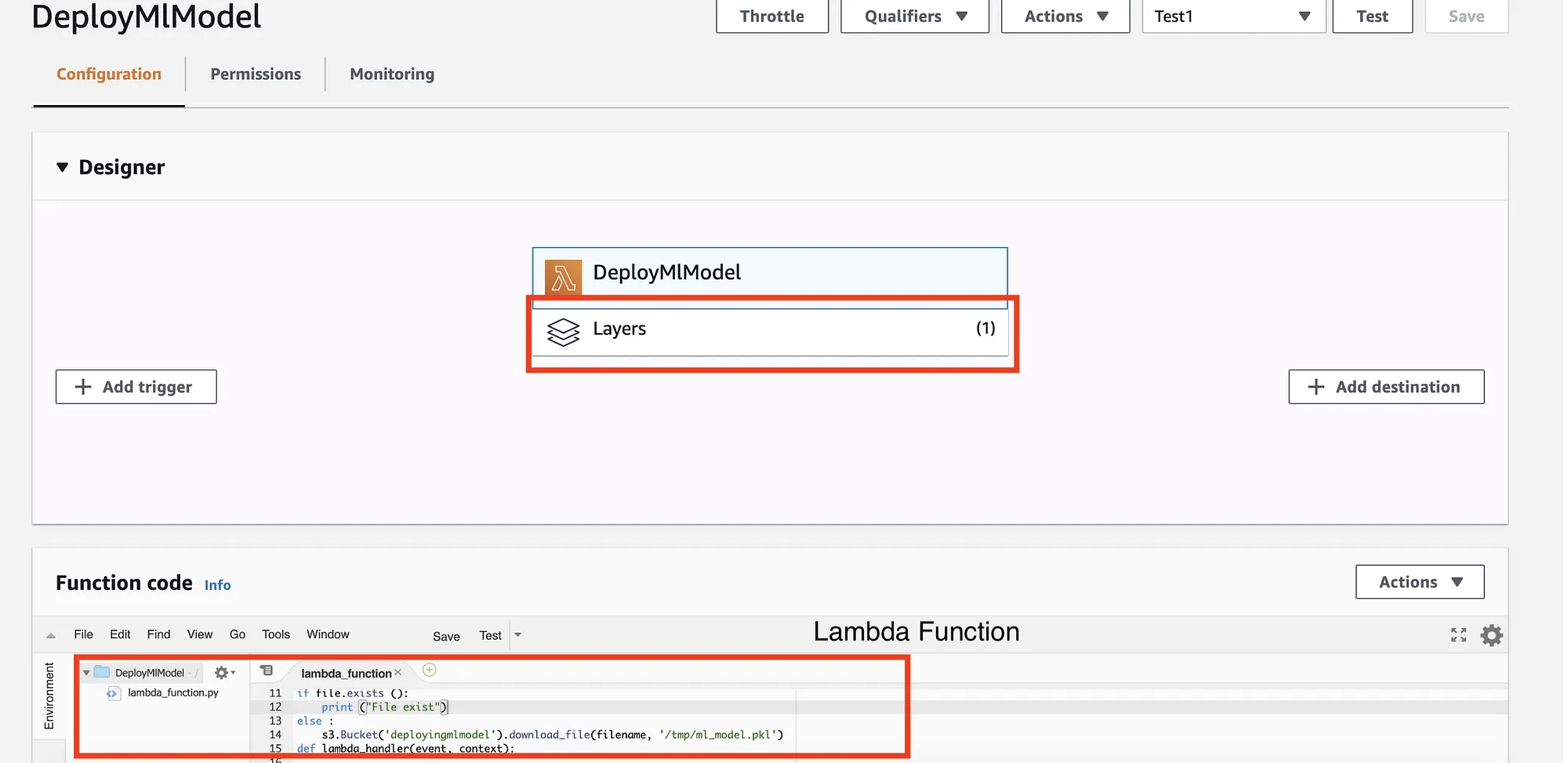
Overall, your Lambda function should now be showing one layer and the above code. See Figure 9 for reference.
Congratulations! You have successfully added required dependencies (sklearn and pandas) and deployed your ML model on AWS Lambda. It is now ready to be tested and to view the ML model predictions.
Approach 2
This approach includes zipping ML models together with Lambda function to upload the model directly to AWS Lambda. Figure 10 is a diagram of the architecture for this approach.
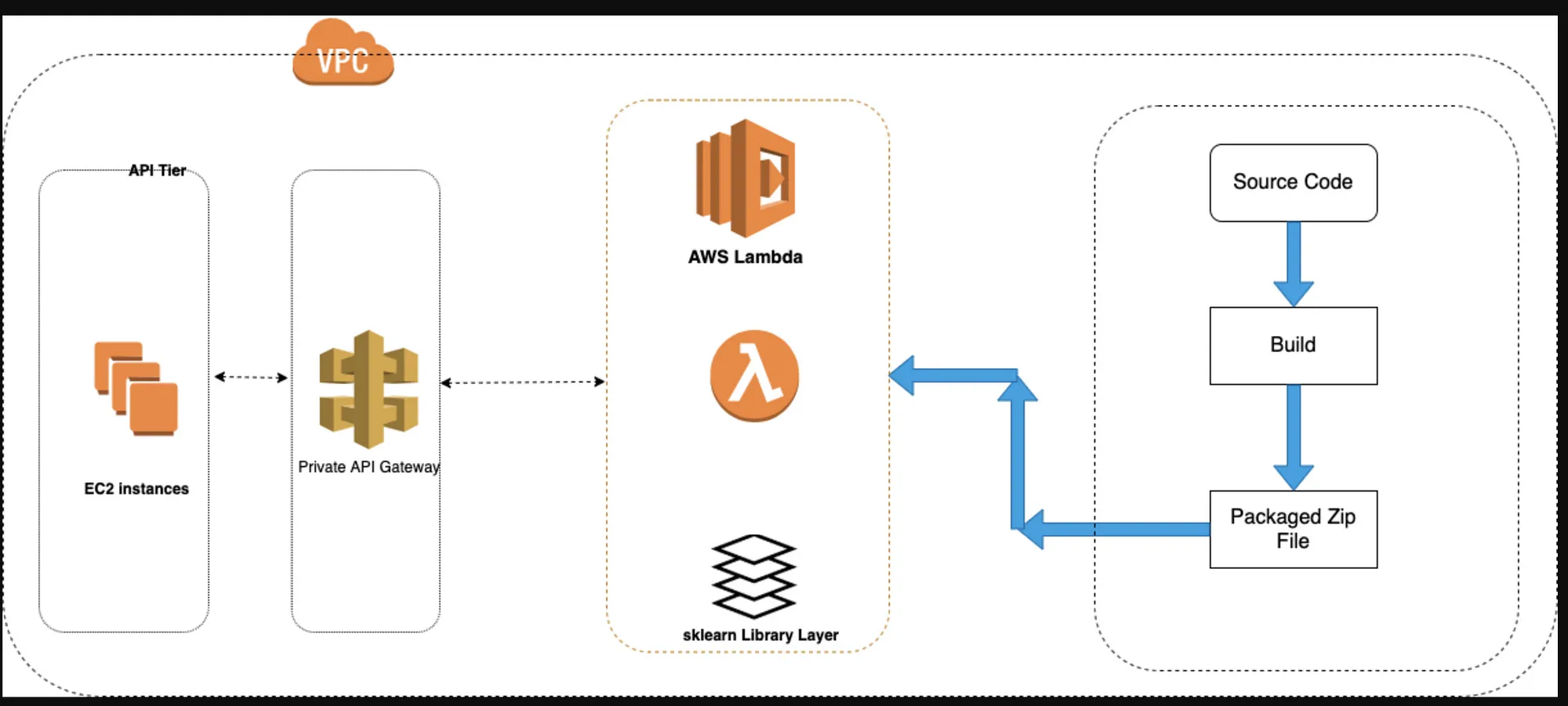
Start by adding the Lambda handler code in Predict.py and then zipping it together with the pkl file for your model to create a zip file. (See Figure 11 for contents of zip file Archived.zip.)

Now, upload this zip file to Lambda’s upload a .zip file option highlighted in Figure 12.
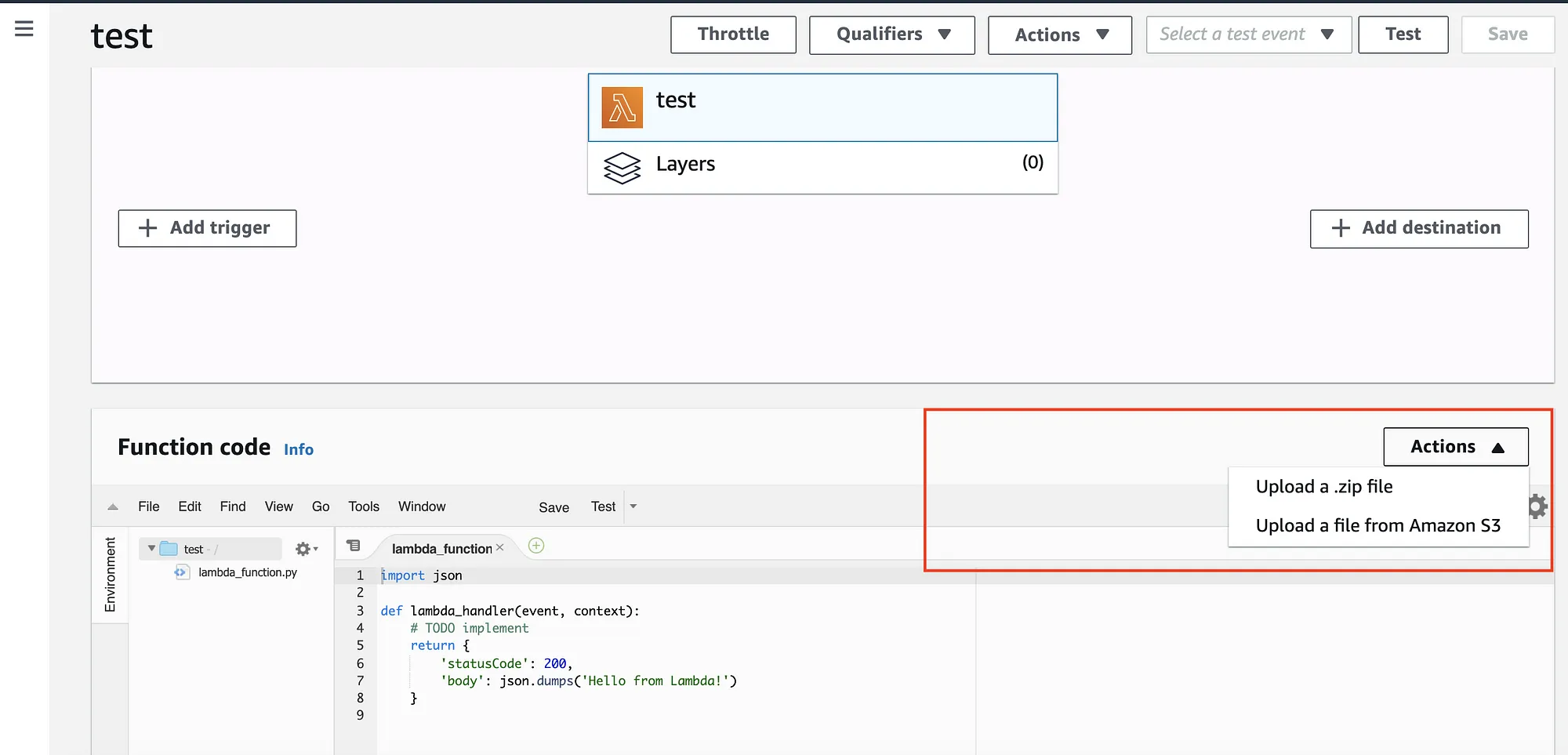
If your zip file size is less than 10 MB, you can directly upload from here; otherwise, keep it in S3 and refer to the zip file from there. This information can be seen in small fonts in Figure 13.
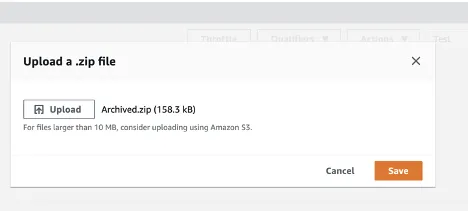
Click “Save.” Once your file is successfully uploaded, view your Lambda function. It should show the pkl file and py file in the Archived folder (Figure 14).
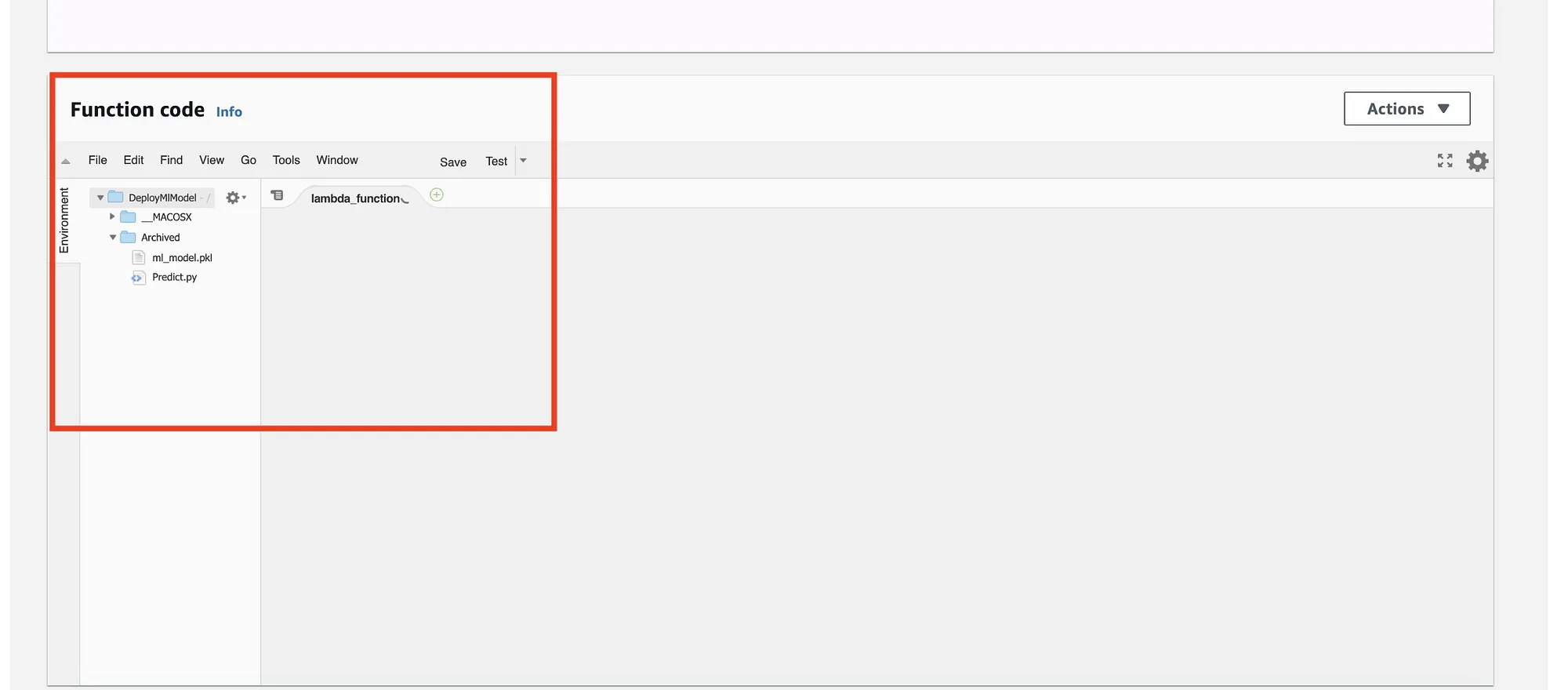
Congratulations! You have successfully deployed the ML model in zip format along with LambdaHandler code.
Making It Efficient
Now, go ahead and check your response time from both approaches. In my example, I received response for first call in 10-12 seconds, and for following calls, it took less than 1 second.
The Lambda approach is cost-effective; however, for the first call, if Lambda Container is not running, when the Lambda function is invoked, it must download Lambda Container in Lambda Runtime Environment, which is a time-consuming process and will add on to the overall response time.
So, is it possible to make the Lambda approach time-efficient from the very first call? YES!!! It certainly is.
You can do so by adding a Lambda trigger. The following steps explain the process to add a Lambda trigger and leverage it to reduce the response time of your Lambda call.
Steps to Add a Lambda Trigger
The purpose of adding a Lambda trigger is to keep Lambda warm and make sure the container is always running. To achieve this, you’ll have to add a CloudWatch Event to the Lambda functions created in the approaches explained above.
As presented in Figure 15, create a new rule to trigger Lambda function “DeployMlModel” to trigger every 5 minutes and constantly check if the model is available; if it is not available, download it.
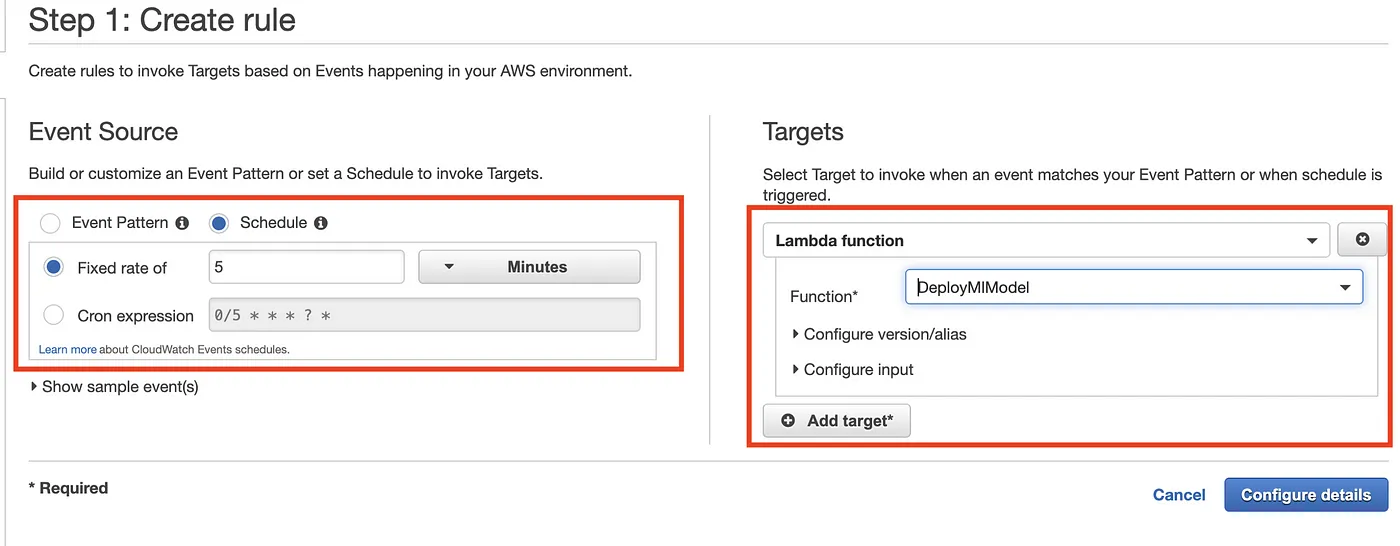
Hence, instead of downloading the model during an API call, it would make the ML model always available. It could also be configured to run during a particular time duration (e.g., business hours or non-business hours).
Click on “Configure details” to save the trigger rule. It should be visible to you in the Rules list in green status. See Figure 16 for reference.
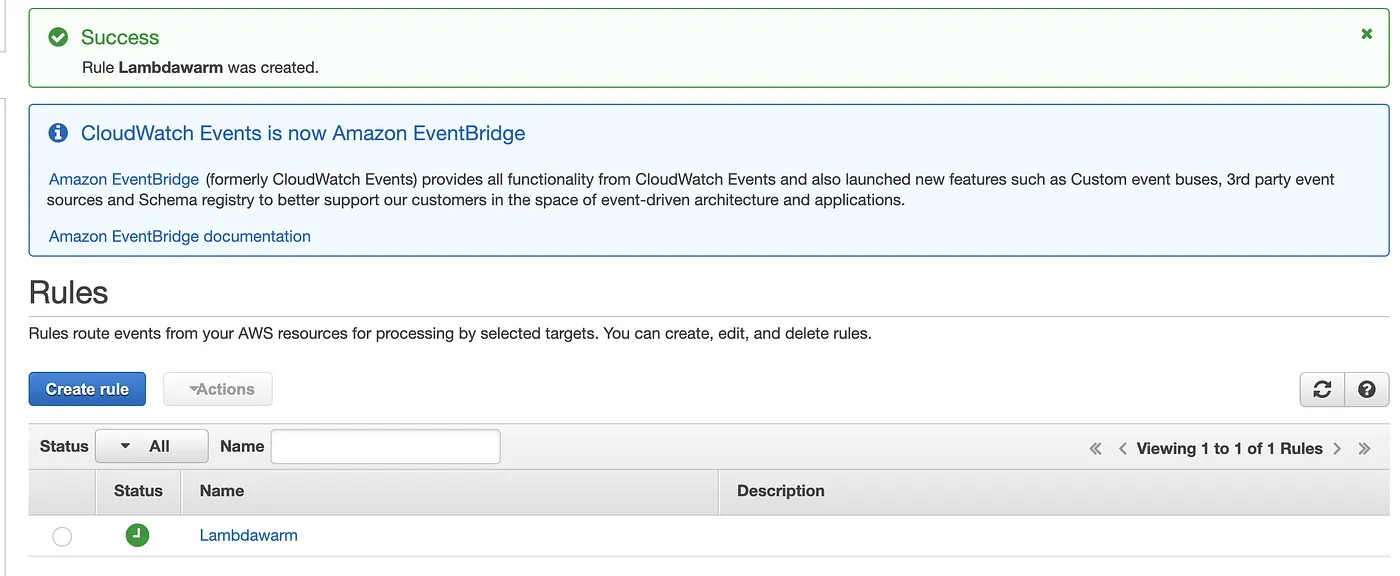
Now, go to your Lambda function and see that a trigger is added to the Lambda (see Figure 17).
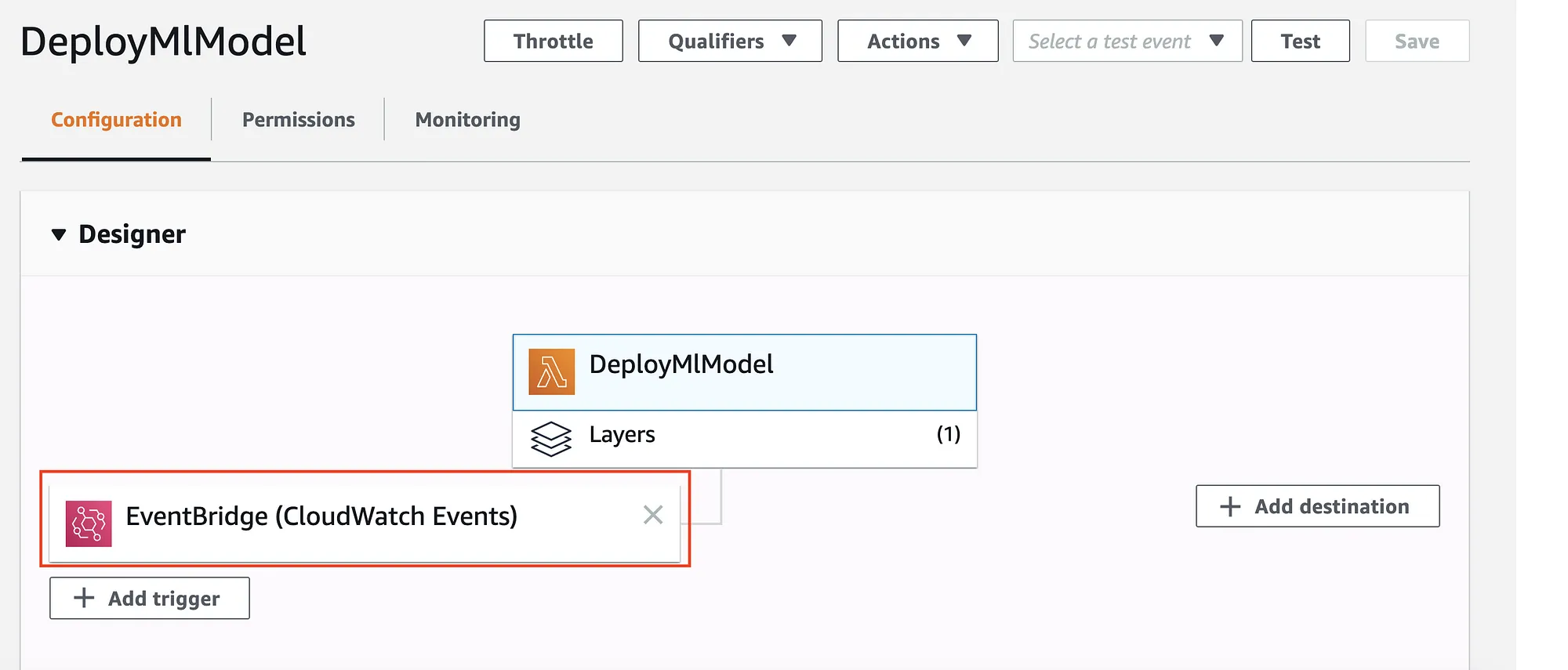
You can also check AWS watch logs to verify that Lambda is invoked every 5 minutes; thus, it will download the model from S3, and the response time will be vastly reduced. With a CloudWatch Event, the response time for the first call will also be less than 1 second, the same as we were getting earlier for the subsequent calls (see Figure 18).

Final Notes
The only limitation with Lambda is that it has a deployment package size limit of 250 MB. So, if your code and Lambda layer size is larger than 250 MB, Lambda will throw an error as shown in Figure 19.

References
- Creating Lambda layer: http://aws.amazon.com/premiumsupport/knowledge-center/lambda-layer-simulated-docker
- CloudWatch Event for Lambda: https://docs.aws.amazon.com/AmazonCloudWatch/latest/events/RunLambdaSchedule.html
Gaurav Mittal is a seasoned IT manager with 15+ years of leadership experience, adept at guiding teams in developing and deploying cutting-edge technology solutions. Specializing in strategic IT planning, budget management and project execution, he excels in AWS Cloud, security protocols and container technologies. Gaurav is skilled in Java, Python, Node.js and CI/CD pipelines, with a robust background in database management (Aurora, Redshift, DynamoDB). His achievements include substantial cost savings through innovative solutions and enhancing operational efficiency. Gaurav is recognized for his leadership, problem-solving abilities and commitment to delivering exceptional IT services aligned with organizational goals.