An Update to Converting Zip Code Data into Distances Using Microsoft Excel Geography Data Type, Maps, and Including Driving Distances
Abstract
In the article “Converting Zip Code Data into Distances: A Case Study for Teaching Business Analytics” [Huggins E (2019) INFORMS Trans. Ed. 19(2):105–107], the author demonstrates how to convert a column of zip code data into approximate distances from a default zip code using standard Microsoft (MS) Excel functions and a zip code database. In this case article, we update that case in three specific areas. First, we explore using the relatively new MS Excel Geography Data Type that, in theory at least, eliminates the need to use the zip code database by accessing required information about each zip code directly from the web. Second, we show how to apply the MS Excel Maps feature to this data. Third, although the original article uses approximate straight-line distances, we show how to extract driving distances between two zip codes using public maps and an application programming interface with MS Excel’s =WEBSERVICE() function. Two of these updates are not as straightforward as one might hope: The Geography Data Type returns a significant number of errors and, although driving distances can be determined, there is no “easy” way to do so yet. We discuss these issues in the case teaching note.
Supplemental Material: The Teaching Note and data files are available at https://www.informs.org/Publications/Subscribe/Access-Restricted-Materials.
1. Review of Original Case and Teaching Plan
The original article describes a case study used in an undergraduate business analytics course where the home zip codes for thousands of students at a small college are known and available in an Microsoft (MS) Excel spreadsheet. The requirements for the case are to determine which state each student is from and to estimate the distance between each zip code in the column of zip code data and a default zip code in Durango, Colorado, which is 81301. The students working on the case study then use this information about states and distances to develop various descriptive analytics.
A key element of the original case study is that it is free. Students only need access to MS Excel. The analysis uses standard Excel features and a free online database that contains several fields for each zip code, specifically the state in which the zip code is located and the latitude and longitude for each zip code which are used for estimating distances between zip codes. Commercial software is available that will do everything developed in the case study and more, but this software is not free and generally not available to all students. Furthermore, the pedagogical highlights for the students who complete the case study are that they created it by themselves, and they did not have to spend a dime doing so. We retain this key element in our update, under the assumption that students have a Microsoft 365 account and access to a newer version of Excel with the Data Type functionality and for the driving distance that students have the =WEBSERVICE() and =FILTERXML() functions. These functions are found in Excel 2013 and later, and they only work within the Windows operating system.
We have taught this case study multiple times in our business analytics class. Our students are all undergraduate business majors who take this course for a variety of reasons. Some are majoring in data analytics for whom this course is a requirement; other students take it as an elective. All students in the class have taken a prerequisite course in MS Excel, although their proficiency levels vary significantly.
The case study is generally well received by the students and after a bit of gentle nudging, most of the students are off and running, working in teams to complete the case study without needing too much outside help. Historically, the most common hurdle that has arisen is how to accurately access the data from the database; specifically, how to get either =VLOOKUP() or =XLOOKUP() functions to return the appropriate results.
Bearing this in mind, each time we have taught the class, the students naturally start to look for better, easier, and faster ways to achieve the same results. If at all possible, they would prefer to avoid using the database and lookup functions altogether. With the advent of the Data Types feature, which is accessed under the Data tab in MS Excel, students realized that they could potentially complete the original case study without downloading the zip code database file at all. The Geography Data Type feature determines the state, longitude, and latitude for a given zip code by extracting that information directly from the web. We discuss this in depth in Section 2.
In the original article (Huggins 2019), there is an “extra credit” section at the very end that challenges students to “figure out a way to put the state information on a choropleth map.” Newer versions of MS Excel now have a “Maps” feature, located under the Insert tab that makes this effortless. We discuss this feature in Section 3.
Last, each time we use this case study, students point out that straight-line distances may not be the best measure of how far each zip code is from the default zip code. Particularly in mountainous Colorado, traveling between two points very rarely occurs in a straight line! Some students always question whether driving distance (or time) would be a better measure and they have a point. However, thus far, none of our undergraduate students have figured out a way to come up with these distances, but we believe this might be possible in a graduate-level class or in a class where the students have more coding experience, so in this update we have included detailed instructions on how to determine the driving distances for multiple pairs of zip codes. We discuss this in depth in Section 4.
1.1. Teaching Plan
We teach the case over the period of approximately two weeks, with much of the class time during this period used by the students making progress on the spreadsheet. A deadline shortly thereafter turns whatever the students have not completed in class into homework, although by this point most of the students have completed the more difficult parts and are in the process of writing up the results.
On the first day, we introduce the original case study as published, with an addendum (discussed below), and together we take a look at the spreadsheet that contains the zip code data. In the data, it is important to notice that some of the zip codes have five digits, whereas others contain the extra four digits after a hyphen for the specific delivery route. In a previous assignment, our students have used the Text to Columns function to separate data, and we hint that this might be useful in eliminating the extra digits that are not required for our purposes. Next, we ask the students if any of them have used the Data Types or Maps features in Excel: typically, some have, others have not.
We show the students where to find both features and then play around with the Data Types feature to see how it works. To start, we ask the students to pick a stock, then ask what its current price is; immediately, most students pull out their phones to look it up. We then show them how to accomplish this directly in MS Excel, similar to what is discussed in Section 2. In our experience, most students instantly recognize the potential of Data Types after learning how to look up a current stock price. We then do the same for the zip code 81301.
Next, in light of the discussion above, we complete the introduction of the case study by going over two important aspects of it. First, we look over the addendum to the original case with now requires the students to complete the choropleth map using the Excel Maps function and has an extra credit problem to figure out how to calculate driving distances rather than straight-line distances. We make it clear that the extra credit is quite tricky; nonetheless, some of our best students attempt it, although none of them have been successful yet. Second, we discuss that there are two ways to approach extracting the required information from the more than 3500 zip codes, either using the new Data Types function or the free online Database discussed in the original case study. We caution them that the Data Types approach will likely have some errors and that the Database approach is laborious but generally successful.
Historically, at this point we let the students choose how to proceed. Should they use the newer but error-prone Data Types feature or the clunky but trustworthy Database method? We feel that this decision accurately models the kind of real decision about how to tackle a problem that they will face throughout their careers in data science and that there is a lot that the students can learn by being given the choice of which way to proceed. In the end, thus far, all of the students end up needing to use the database as the Data Types function returns too many errors, but we feel that it is not a waste of time for two reasons.
First, we encourage our students to work together; naturally, the students that cannot succeed with the Data Types approach explain this to the students who use the database, and in turn those students help the others get caught up on how to use the database. The choice of how to proceed combined with the common goal of solving the problem tends to foster a very good learning environment where both “sides” eventually help each other. The second reason we want some students to try using the Data Types method is that we feel in time either one our students will discover how to preclude the errors from occurring or MS Excel will update the function to become more reliable.
Typically, the situation discussed above happens on the second day of class time working on the case. On the third day of working on the case, we usually address common questions at the beginning of class, mainly “Why does the Data Types function have so many errors?” (more of a complaint, really) and “How to get =XLOOKUP to work on the database?” Depending on the students’ progress at this point, we decide how much more class time they will need to work on the case and how much they can be expected to get done on their own, and we potentially adjust the due date accordingly.
One final note: Like the original case study, we use MS Excel for every aspect of the solution, although we feel that we are pushing the frontiers of Excel’s capabilities using APIs to access information from the web. Clearly, the same analysis could be performed with commercial software like Tableau or by coding the data into R or Python. This is beyond the scope of the class in which we use the case study and beyond our students’ coding capabilities, but we decided to complete the analysis in Python just to see how the results compared. We include the Python code and output with the Excel file that accompanies the case teaching note but do not discuss it here as it exceeds the scope of this paper; readers interested in the details should feel free to contact either of the authors.
We compared the driving distances as determined by the application programming interface (API) and using Python and the results were very similar. For the thousand plus unique zip codes where driving is possible, the average distance determined by the API was 856 miles and from Python it was 858 miles. The median absolute difference between the two data sets was five miles and the median absolute percentage error was 0.8%. A variety of reasons could cause these differences: how the center of each zip code is estimated, different routes based on current driving conditions, and so on. For the purposes of this case study, which is to find demographic data about where students are from, a one percent error that could fluctuate a little over time is acceptable: a student from zip code 01083, Warren, MA, is either 2,240 miles away according to the API or 2,244 miles away according to the Python output; in either case, that student would be categorized as from very far away. We can imagine circumstances where more accuracy here could be important, for example, real-time delivery routes, which we leave as a subject for future research.
2. MS Excel Geography Data Type
Data Types first appeared in the 2016 version of MS Excel. The three standard types are Geography, Currencies, and Stocks, although dozens of other types are available. When a user converts data in a cell to one of these types, they can then access various information about the data directly from the web. To do so requires a Microsoft 365 account and an Internet connection. When the user employs these functions, MS Excel tasks Bing to scour the web for the sought-after information.
To illustrate how Data Types work, consider stock prices, one of the standard Data Types. If a user wishes to know information about a particular stock, say Microsoft, they start by typing “MSFT” into an empty cell (the first cell in the screenshot, which happens to be cell C5). They then convert the cell into the Stocks Data Type, which is the second cell in the screenshot (D5). In the third cell in the screenshot (E5), the user types in =D5, and a wide range of information about Microsoft stock becomes available. The user can scroll though the options and choose which one they want or specifically type what information they want after a decimal point. In our example, accessed as =D5.Price on the morning of January 26, 2023, the current price of MSFT was $244.39. However, that is not all: There are actually 28 different instances of information about Microsoft and its stock available, ranging from how many employees Microsoft has (221,000), to MSFT’s Price-to-Earnings ratio (26.75), to when Microsoft was incorporated (1993): 
For this case study, we are interested in finding out information based on zip codes. In the original article, the home base zip code is 81301. Using the Geography Data Type, we can determine all the information we need to know about this zip code directly. In the first column of the screenshot below (cell G5), the user enters 81301 then converts this to the Geography Data Type in the second column (cell H5). From the information in the second column, the Data Type determines the city is Durango using =H5.City. From the city information in the third column (cell I5), the Data Type establishes the state (=I5.State), latitude (=I5.Latitude), and longitude (=I5.Longitude): the three necessary data pieces to complete the original case study, without requiring downloading a zip code database, the information is retrieved directly from the web. 
When our students realize this is possible, the excitement in the classroom is palpable; there appears to be no need to download a separate database file (which is quite big and unwieldly), and more importantly, the students do not have to figure out how to use either a =VLOOKUP() or a =XLOOKUP() function to access the relevant data. Unfortunately, there is a catch. When it works, the Geography feature is very useful, but it does not always work. In the data set provided with the original case study, there are more than 1,000 unique zip codes, but we found 74 cases where the Geography function was unable to access the correct zip code, latitude, and longitude for a given zip code. This is an error rate of almost 7%. We discuss these errors and what to do about them in more depth in the case teaching note.
3. Maps
A new feature that does seem to work well is the “Maps” function, accessed under the Insert tab in MS Excel. This feature allows the user to draw a choropleth map of the United States, Europe, or the entire globe. For our purposes, we are interested in drawing a choropleth map of the United States (Figure 1).

At the end of the original case, an extra credit assignment is to map out how many students are from each state with one of these maps. Until recently, some of our students figured out how to do this by various time-consuming methods but, with the Maps feature it is now quite straightforward. After students discovered this feature and pointed it out to us, it has become a requirement of the case study when we now teach it
From a list of all 50 states paired with the corresponding headcounts, the user simply highlights the data and clicks on the Map function and MS Excel creates the map. The first map that pops up is monochrome; in the data set from the case, Colorado dominates all other states, so it is difficult to distinguish the secondary states from the tertiary states. The Map feature allows the user to use two different color scales to better separate the states as can be seen in the previous output.
4. Driving Distances
The final update to the original case is to estimate the distances between two zip codes more realistically. The original case basically uses a Pythagorean formula, which factors in the curvature of the earth, to estimate straight-line distances between two points. Although this is probably good as far as comparisons go, a student from Denver is closer to Durango than a student from, say, Chicago, our students in class generally bring up that driving distances would be a more realistic measure of “how far away” each zip code is.
Finding these distances for a single pair of zip codes is easy. To wit, the website Distance Between USA ZIP Codes (freemaptools.com) instantly returns both the straight-line distance and the distance by car; we input 81301 (Durango) and 80222 (Centennial, CO) and got 221 miles for the former and 346 miles for the latter. Conversely, finding the distances between over a thousand pairs of zip codes is not straightforward, but is possible using MS Excel and a Public Maps API.
A Public Maps API is a tool that enables two software components to communicate with each other using a set of definitions and protocols. In our case, the client is MS Excel that interacts with a public maps server like Bing Maps or Google Maps. The interaction between the client and server occurs when the client sends a request to the server; that is, MS Excel requests information from Bing or Google Maps. We do this often in our daily lives, for example, when we open the Google Maps app on our phone and ask for directions. We provide the app with from and to addresses and Google Maps generates a driving distance solution, sending the driving distance, route information, estimated time of arrival, multiple feasible driving routes, and estimated driving duration time all back to our phone.
The goal of an API is to automate this process. We can design a spreadsheet that is capable of providing the API with information and in return, obtaining the driving distances for multiple locations and automatically recording them on the spreadsheet. To accomplish this level of automation we take a systematic approach. The first step is to obtain an API key. This key allows us to query and provide inputs to Bing or Google Maps directly from our spreadsheet, using the =WEBSERVICE() and =SUBSTITUTE() Excel functions. This returns output in XML format, which is a markup language and file format for storing, transmitting, and reconstructing arbitrary data. The second step is then to use the =FILTERXML() function so that we may extract from the XML response the pertinent information we want.
We attempted to use this methodology to directly determine the driving distances for each of the approximately thousand zip codes from the original case study to zip code 81301. In the majority of cases, we were able to pair a zip code with 81301 and successfully determine the driving distance in miles and the estimated time for the trip, extracting this information from the web. Both these values are not constant and will vary depending on when a user accesses them, due to changes in routes, traffic, and so on. Unfortunately, much like the Geography Data Types, frequent errors occurred, on the order of about 10% of the zip code pairs. Despite repeated attempts to fix these errors, we continued to get very odd results, with clearly domestic zip codes returning latitude and longitude coordinates in Central and South America! In theory, using API directly on the zip codes should work, but in our case, it does not yield consistently correct results.
Luckily, however, it does work accurately when given the correct latitude and longitude coordinates as a starting point. We could not get it to work consistently from zip code to zip code, but when fed the correct coordinates for each of the approximately thousand locations, the API methodology accurately estimated the driving distance (in kilometers and miles) and the travel time (in minutes and hours) for every data point where driving directly is possible. Of the 1,072 unique zip codes in the original data set, we determined the driving distance and the travel time for 1,055 of the locations; the 17 locations for which we could not determine these statistics are all either in Hawaii or inaccessible parts of Alaska. These data are available in the MS Excel file included with the case study.
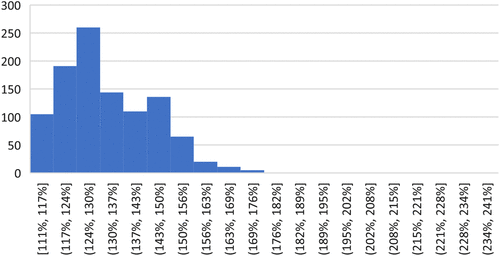
These driving distances and travel times provide interesting results. First, are the straight-line distances from the original case study a decent proxy for driving times? The answer could be argued as yes because the correlation between these two is almost perfect, with coefficient of correlation of 0.991 (r2 = 98.3%). Straight-line distances are very highly correlated with driving distances. Second, how different are they? On average, the straight-line distances are 76% of the driving distances; the driving distances are 131% of the straight-line estimates. The maximum driving to straight-line ratio was 241% from Telluride, Colorado (81435), which is only 46 miles from Durango as a crow flies, but with massive mountains between them, it takes 111 miles to make the drive. The lowest driving to straight-line ratio was 111%, with multiple results from Ohio and Pennsylvania along Interstate 70. Figure 2 shows a histogram of the driving to straight-line ratios, where it can be seen that the majority are between approximately 110% and 150%.
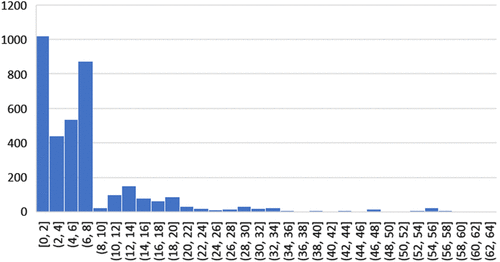
The travel times are also interesting to interpret. Excluding the students from Hawaii and remote Alaska, the average student is 7.1 hours away from home, with a median of 5.7 hours. As can be seen in Figure 3, many students are “local,” located within two hours with the next biggest group from six to eight hours away; these students are mostly from the population centers along the Front Range including Colorado Springs, Denver, and Boulder. The furthest student is from Kodiak, Alaska (99615), which is a remarkable 64-hour, 2,448-mile drive away!
The use of APIs to access data like what we discuss previously is not new. Our students use them daily, but many do not know how they work nor how powerful of a tool it can be. APIs serve as essential building blocks for data science by providing access to key data sources. More importantly, they allow direct access a la carte data to solve modern data-related problems and allows users direct insight on how to automate the use of Internet resources. Please refer to the teaching note for details and step-by-step procedure of how this can be incorporated into the case study.
5. Discussion
As MS Excel continues to progress, new features become available that may make previous ways of doing things obsolete. In the case of the Maps feature, this holds true. Equipped with data for states and/or countries, users can quickly and easily create professional-looking choropleth maps that make for excellent descriptive analytics.
Seemingly, the new Geography Data Type cuts out a major hurdle of the original case study by accessing the necessary information about each zip code directly from the Internet, eliminating the need to download a large database and decipher how to access it. When it works, it’s pretty amazing: enter the desired zip code, convert it into the Geography Data Type, and then simply access the state, latitude, and longitude. In the data set from the original case study, this works about 93% of the time. However, it fails the other 7% of the time, leaving the user frustrated and the data analysis incomplete.
Last, driving distances arguably make more sense than distances as a crow flies. Although it is possible to determine driving distances between each different sets of coordinates, we could not make it work between pairs of zip codes consistently. These methods are currently beyond the scope of our undergraduate business students; however, the knowledge gained by a student that learns how to effectively use APIs to obtain needed data will be a step ahead, as this capability is rapidly becoming a requirement in the modern data science and business intelligence fields.
References
- (2019) Converting zip code data into distances: A case study for teaching business analytics. INFORMS Trans. Ed. 19(2):105–107.Google Scholar